
PC problems · Fans
How to check fan speed on PC in Windows 11 and 10
My PC reports ten fans and Windows shows none of them, and four always read 0. How to check fan speed on PC in Windows 11 and 10 in the BIOS, in your GPU's software and with a free monitoring app, and what the numbers mean.
The short answer
Windows 11 has no built-in fan speed reading. To check fan RPM, open the BIOS hardware monitor page as the PC starts, use your GPU's software for GPU fans, or install a free monitoring app that reads every fan sensor while Windows runs. Most motherboard fans need the app to run as administrator.
My PC reports ten fans, and Windows shows none of them. Two are on the GPU, and eight are fan headers on the motherboard, spread over two sensor chips. Four of those headers have read 0 rpm every minute since late September, most likely because nothing is plugged into them. So how to check fan speed on PC in Windows 11 comes down to three places, the BIOS, your GPU's software and a monitoring app, and knowing what a 0 means.
Test setup
- GPU
- NVIDIA GeForce RTX 3080 Ti, 12 GB
- CPU
- AMD Ryzen 7 5700X3D
- Memory
- 16 GB, 32 GB from 14 November 2026
- Windows
- Windows 11
- Motherboard
- Gigabyte B450 AORUS PRO, two fan sensor chips
- Recorded
- Every fan's speed every minute, 29 September to 23 November 2026
- Counted
- The middle 90% of each fan's spinning minutes
Here's what my fans read, to give the numbers a shape.
| Fan | Usual speed | What it does |
|---|---|---|
| GPU fans | 0 at the desktop, about 1,700 to 2,250 rpm in games | Stop while the GPU is cool |
| Motherboard fan 5 | About 1,650 to 2,350 rpm | Follows the CPU |
| Motherboard fan 1 | About 1,250 to 1,750 rpm | Follows the CPU |
| Motherboard fans 2 and 3 | About 1,600 to 1,700 rpm | A set speed |
| Four other headers | 0 rpm | Most likely nothing plugged in |
Why Windows doesn't show fan speeds
Fan speeds come from sensor chips on the motherboard and the GPU. Each maker wires them up differently, and Windows has no standard way to read them on desktop PCs. Task Manager shows CPU and GPU load and the GPU's temperature, but no fan speeds. Every method below reads the chips directly, which is also why some of them need admin rights.
Check fan speed in the BIOS
The BIOS reads every fan on the motherboard before Windows starts. It's the most reliable way to check fan RPM on a PC, and it needs nothing installed.
- Restart the PC.
- As it starts, press Delete or F2 a few times. The right key shows on the first screen and in the motherboard manual.
- Look for a page called Monitor, Hardware Monitor, H/W Monitor or PC Health Status. On many boards the fan speeds also show on the first, simple screen.
- Read the speed next to each header name, such as CPU_FAN, CHA_FAN1 or SYS_FAN2.
- Leave with the exit option that discards changes, so nothing you touched is saved.
The fan control pages are nearby. They're called Q-Fan Control on ASUS, Smart Fan on Gigabyte and MSI, and FAN-Tastic Tuning on ASRock. Some boards, ASUS among them, have a button there that tests each fan and sets its lowest safe speed.
The downside is that the PC sits idle in the BIOS. You see the fans at rest, never in a game, which is usually when you care.
Check GPU fan speed
GPU fans connect to the card, not the motherboard, so the BIOS doesn't show them. Use the card's software instead.
- On AMD cards, open AMD Software, go to Performance > Metrics, and you'll see the GPU fan speed in RPM. You can also add it to the in-game overlay.
- On NVIDIA cards, the NVIDIA app's overlay is built around frame rate, load and temperatures, not fan speeds. RigSight shows the GPU fans on its Fans page without admin rights, and MSI Afterburner and card makers' tools like ASUS GPU Tweak show them too.
Don't worry if it says 0 RPM on the desktop. Most cards stop their fans while cool and start them once the GPU warms up, often somewhere around 50 to 60°C. The post on a GPU fan not spinning explains how to tell that apart from a broken fan.
Check every fan with a monitoring app
A monitoring app reads the motherboard, the GPU and any fan hub at once, while you use the PC. That's the only way to see fan speeds in a game. I built RigSight for exactly this, so it's the one I'd start with. It's free and open source, and it keeps every fan's speed as history, so you can look back at a game after it ends.
- Download RigSight from rigsight.app and install it.
- Open the Fans page. Every fan your PC reports is listed, grouped as GPU, Cooler and Motherboard, with its speed now and what it follows.
- To watch a fan during a game, add its speed to the overlay or the taskbar from its row on All sensors.
Motherboard fans need RigSight to run with admin rights, and GPU fans show either way. HWiNFO is the best known alternative, and it reads even more sensors. Start it with Sensors-only ticked, allow it to run as administrator, and read the rows that end in RPM under your motherboard and GPU. It shows what's happening now unless you switch on its logging.
Two things trip people up with any app. Fans plugged into a hub or a splitter often report only one speed, or none. And RGB and fan apps such as iCUE, Armoury Crate, NZXT CAM or MSI Center talk to the same chips, so their fans may show in that app instead.
Laptops
Laptops are harder. Their fans are run by the maker's own controller, and many don't share the speed with Windows at all. Try the maker's app first, since gaming laptops often show fan speeds or fan modes there. A monitoring app may read them on some models and show nothing on others.
What the numbers mean
There is no single normal fan speed. A fan's range depends on its size and design, and the maker lists it on the spec sheet. These are rough figures.
- Many 120 mm and 140 mm case fans run a few hundred RPM at rest and top out somewhere between about 1,200 and 2,000 RPM.
- CPU cooler fans follow the CPU temperature, so they move more than case fans do.
- GPU fans often sit at 0 RPM on the desktop and climb to somewhere around 1,000 to 3,000 RPM in a demanding game, depending on the card.
- 0 RPM on a motherboard header usually means nothing is plugged in there, like four of mine.
The speed matters less than how it moves. A healthy fan speeds up as its part warms up and slows down after. If your PC fans are spinning so fast all the time with cool parts, check Task Manager for background work and the curve in the BIOS. If they're loud in games, the post on PC fans loud while gaming goes through the causes.
How RigSight caught it
The table at the top comes from RigSight, a free, open source app that records your PC all day and keeps it as history. Its Fans page lists every fan your PC reports, grouped as GPU, Cooler and Motherboard, with the speed now and whether it's spinning, resting while cool, or stopped. It also counts the motherboard headers with nothing on them, so "4 fan headers free" tells you why some are at 0.
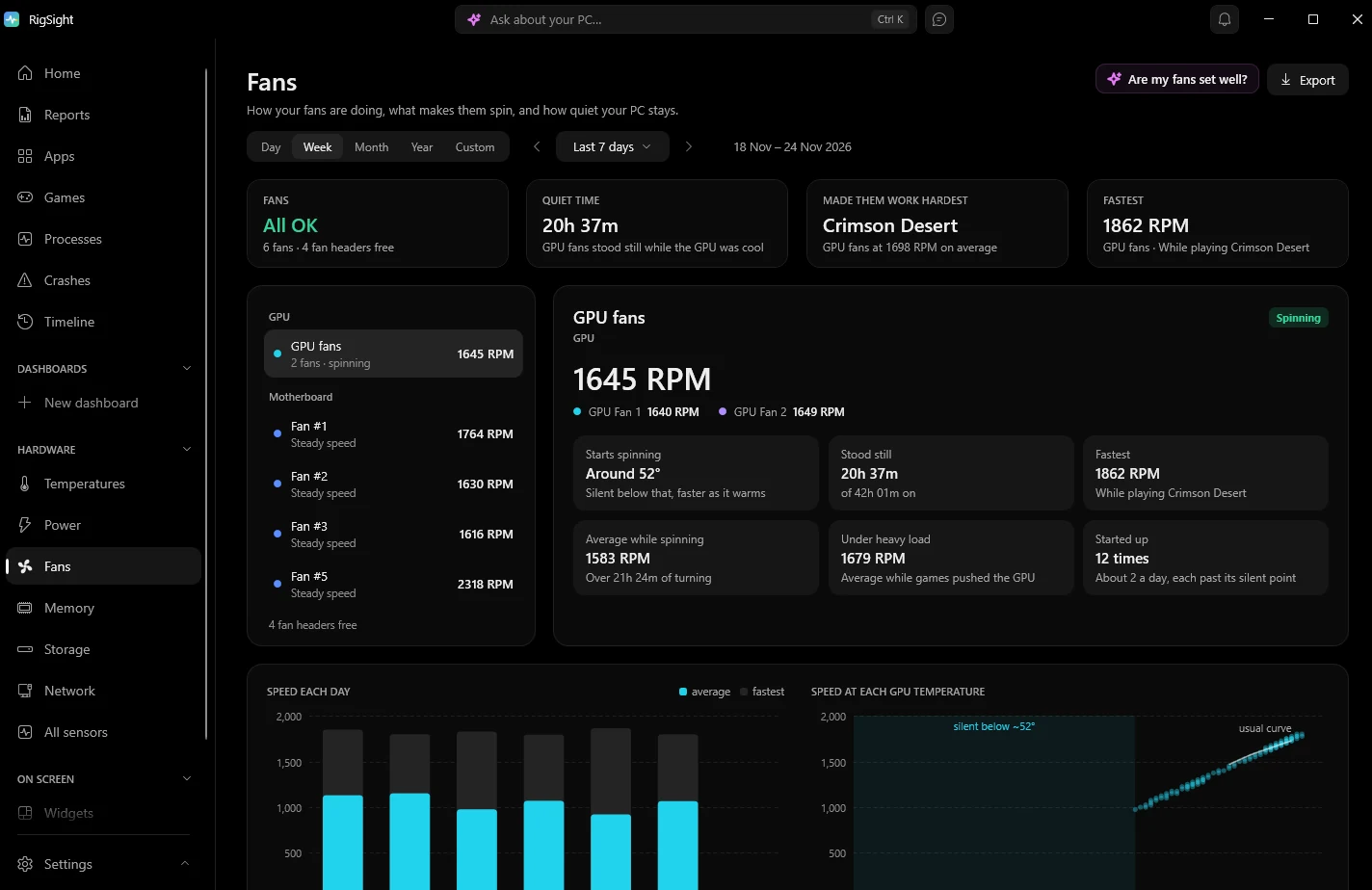
Because it keeps history, you don't have to catch the fans in the act. Pick a day, a week, a month or a year and see each fan's speed through it, hover the charts for each reading, and see what made it spin. Each fan says what it follows, like "Speeds up with your GPU" or "Runs at a steady speed", which tells you which fan is which without opening the case. You can also put any fan's speed on the taskbar, a widget or the in-game overlay from All sensors.
Motherboard fans need RigSight to run with admin rights. On a standard Windows account, Settings lists what's missing without them. GPU fans always show. When iCUE, Armoury Crate or another fan app is running, RigSight leaves the hardware that app controls alone, so the two don't fight over the same chip.
Your next step depends on what you need. For a number right now, the BIOS takes two minutes. To know what your fans do while you play, run RigSight with admin rights through a game, then open the Fans page and see which fans climbed.
Sources
Questions people ask
Can I check fan speed in Task Manager?
Not on most desktop PCs. Task Manager shows CPU and GPU load and the GPU temperature, but not fan speeds. You need the BIOS, your GPU's software or a monitoring app.
How do I check fan speed on PC with an NVIDIA card?
RigSight shows NVIDIA GPU fan speeds on its Fans page, without admin rights, and keeps them as history. NVIDIA's own app doesn't focus on fan speeds, so other common choices are MSI Afterburner, which works with any brand of card, the card maker's tool, such as ASUS GPU Tweak, and HWiNFO.
Why does my fan show 0 RPM?
On a GPU, 0 RPM at idle usually means its fan stop mode is keeping the fans off while the card is cool. On a motherboard header, 0 RPM usually means nothing is plugged in there, or the fan is plugged into a hub that doesn't report speed.
Why are my PC fans spinning so fast?
Something is making heat or the fan curve is set high. Check the temperatures and Task Manager for background work first, then the curve in the BIOS.
What is a normal fan speed for a PC?
There's no one number. It depends on the fan's size and design. Many 120 mm case fans top out somewhere between about 1,200 and 2,000 RPM, smaller fans spin faster, and the maker lists the range on the fan's spec sheet. What matters more is whether the fan speeds up with heat.