
PC problems · Fans
PC fans loud while gaming? Find which fan and why
My GPU fans stand still at the desktop and turn at about 2,100 rpm in Phantom Blade Zero. Why PC fans get loud while gaming, how to find which fan it is, and the fixes that quiet them.
The short answer
Some fan noise in games is normal, because the GPU and CPU make far more heat than at the desktop. If your PC fans are loud or suddenly louder, find which fan it is first, then check temperatures, cap the frame rate, clean out dust, smooth the fan curves and look at what else is running.
On my PC the GPU fans stand completely still at the desktop. In Phantom Blade Zero they turn at about 2,100 rpm, and in Crimson Desert about 2,250. That rise is the noise most people notice, and it's normal. A game makes the GPU and often the CPU draw far more power than the desktop does, and the fans speed up to carry that heat out. A PC that got louder for the same games is different, because something changed, and you can usually find what.
Test setup
- GPU
- NVIDIA GeForce RTX 3080 Ti, 12 GB
- CPU
- AMD Ryzen 7 5700X3D
- Memory
- 16 GB, 32 GB from 14 November 2026
- Windows
- Windows 11
- Fans
- 2 on the GPU, 8 motherboard fan headers
- Recorded
- Fan speeds every minute, 29 September to 19 November 2026
- Counted
- Minutes with a game in front and a frame rate, against minutes at the desktop with the CPU and GPU under 10% busy
Here is what each of my fans does. The numbers are the middle of each fan's minutes.
| Fan | At the desktop | In games | What it follows |
|---|---|---|---|
| GPU fans | Stopped | 1,600 to 2,250 rpm | GPU temperature |
| Motherboard fan 5 | 1,800 rpm | 2,050 to 2,350 rpm | CPU temperature |
| Motherboard fan 1 | 1,350 rpm | 1,550 to 1,750 rpm | CPU temperature |
| Motherboard fans 2 and 3 | 1,650 rpm | 1,650 rpm | Nothing, a set speed |
The other four motherboard headers read 0 rpm the whole time. Two of my fans never change speed at all, so when the PC gets loud in a game, it's the GPU fans and the two that follow the CPU.
Find which fan is loud
"The fans" can be any of four or five things, and each has a different fix. Start by working out which one it is.
- GPU fans. They follow the GPU's temperature. Loud in games, quiet or stopped on the desktop.
- CPU cooler fan, or the radiator fans on a liquid cooler. They follow the CPU temperature and often rev up and down quickly.
- Case fans. Often set to follow the CPU temperature too, or to a set speed like two of mine.
- Power supply fan. Some stay off at light load and spin up when the PC draws a lot of power.
- The pump on a liquid cooler, which can hum or gurgle rather than whoosh.
Listen with the side panel off while a game runs, keeping fingers and cables away from the blades. Then open a monitoring app that lists every fan with its speed, like RigSight's Fans page, and watch which one climbs when the noise starts. RigSight also keeps the speeds, so you can look back after the game. How to check fan speed on PC covers the tools.
Check the temperatures
Loud fans are only a problem if they're loud for a reason that's wrong. Look at the GPU and CPU temperatures in the same game. If they're in the normal range, the fans are doing their job and the fix is about noise, not heat. My GPU sits at 69 to 71°C in my heaviest games, which is comfortably normal for it. If yours is high even with the fans flat out, the cooling isn't keeping up, and PC overheating while gaming is the better place to start. For the GPU side, see normal GPU temperature while gaming.
How hard the game works the GPU decides most of it. Slay the Spire 2 draws about 184 W on my GPU, and its fans sit at about 1,600 rpm. Crimson Desert draws about 296 W, and they turn at about 2,250.
Cap your frame rate
This is the quickest fix for GPU fan noise. With no limit, the GPU renders as many frames as it can, even in a menu or an old game where it could make 500 a second. It works hard, makes all the heat it can, and the fans follow.
- In the game's settings, set a frame rate limit at or just under your monitor's refresh rate, or turn on V-Sync.
- Or set it for every game. In the NVIDIA Control Panel, open Manage 3D settings and set Max Frame Rate. In AMD Software, Radeon Chill can hold the frame rate under a limit you set.
My Risk of Rain 2 history shows the size of it. While it held about 144 FPS, the GPU drew about 241 W and its fans turned at about 1,820 rpm. Without the cap it ran at about 180 FPS, drew about 271 W, and the fans turned at about 1,970 rpm. On a 144 Hz screen, frames above 144 only reach it in pieces. VSync caps FPS at 60? explains the choice between V-Sync and a cap.
Clean out the dust
Dust on the fan blades and in the fins of a heatsink stops air getting through. The parts run hotter, so the fans have to spin faster to do the same job. It builds up slowly, which is why a PC can get louder over months without anything else changing.
- Shut down, switch the power supply off and unplug the PC.
- Take the side panel off and clean the dust filters, usually at the front, top and bottom.
- Blow dust out of the CPU heatsink, the GPU and the radiator with compressed air made for electronics, in short bursts.
- Hold each fan still with a finger while you blow on it, so the air doesn't spin it faster than it's made to turn.
Keep a vacuum cleaner out of the case. Dell's own cleaning guide says vacuums create static, which can damage the parts.
Smooth out the fan curves
A fan curve says how fast a fan spins at each temperature. Many default curves are steep, so a short CPU spike, like a game loading a level, makes the fans jump up and back down again. That rise and fall is often more annoying than a steady, louder hum.
Motherboard fans are set in the BIOS or UEFI. Restart and press Delete or F2 as the PC starts, then look for a fan page. The name varies by maker. ASUS calls it Q-Fan Control, Gigabyte and MSI call it Smart Fan, and ASRock calls it FAN-Tastic Tuning. Most of these pages let you do the following.
- Pick a quieter preset, such as Silent or Standard.
- Flatten the curve so the fans don't climb until the CPU passes about 60 to 70°C.
- Add a delay or step time, so the fans react slowly to short spikes.
Keep the top of the curve at full speed, so the fans can still cool the CPU if it gets hot. GPU fan curves live in the GPU's software. That can be MSI Afterburner, the maker's tool, or Performance > Tuning in AMD Software. The defaults there are usually sensible, so only change them if you know what each step does.
Why are my PC fans suddenly loud?
If the noise started on a certain day, something changed on that day. These are the things to check.
- Background work. Open Task Manager with Ctrl+Shift+Esc, go to Processes and sort by CPU and then by GPU. A Windows update, an antivirus scan, a game launcher installing an update or a browser tab with a video can all keep the PC busy. That's also the usual reason for PC fans loud when not gaming.
- Shaders being built. After a game or driver update, many games build their shaders again in the first minutes. The CPU works hard and the fans ramp up, then it settles.
- A BIOS update or reset. Updating the BIOS, or clearing its settings, puts the fans back on the default curve. If you had a quiet curve before, set it again.
- A new driver or fan tool. A graphics driver update, or a tool like MSI Afterburner loading a profile, can change the GPU fan curve.
- A new game or setting. A heavier game, a higher resolution or a new upscaler setting can push the GPU harder than before.
- The room. A warm evening means warmer air going in, so the fans spin faster for the same temperature.
A sound that changed, like grinding, clicking, rattling or a high whine, is different. That's usually a worn bearing or something touching the blades. Find the fan with the steps above, check no cable is in its way, and replace it if the sound stays. Fans are cheap, and a worn one tends to get louder.
How RigSight caught it
Every number above comes from RigSight, which records each fan's speed every minute next to the temperatures and the app in front. On the Fans page, each fan says what it follows, like Speeds up with your GPU, Speeds up with your CPU or Runs at a steady speed. That's how I know which of my motherboard fans are which without opening the case. Motherboard fans need RigSight to run with admin rights. GPU fans show either way.
Pick a day, a week, a month or a year, and the page names the game or app that made the fans work hardest, the loudest hour, day or month, and how long they stayed quiet. Each fan lists what made it spin, so you can see whether a game or a background app pushed it.
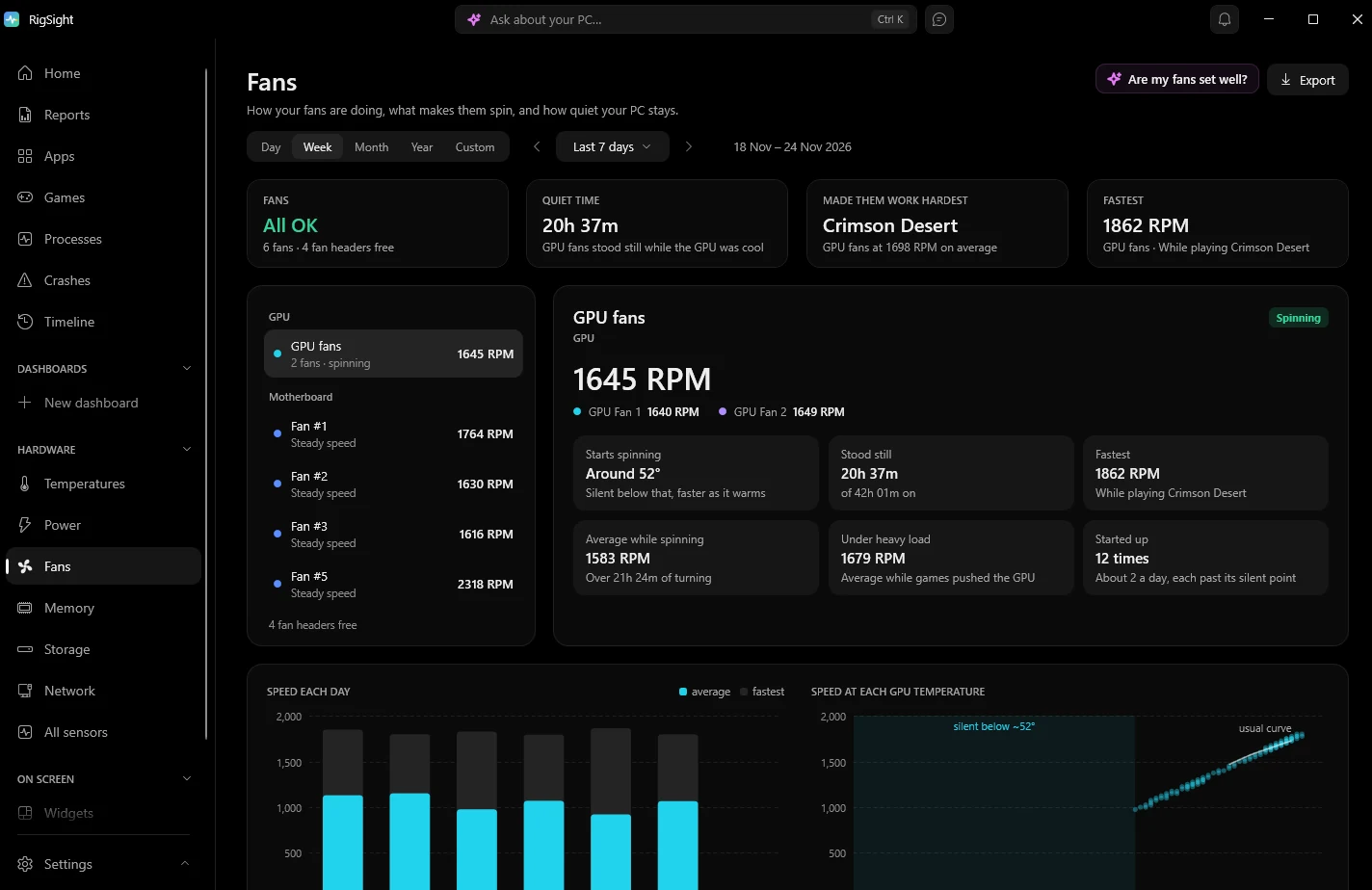
If a fan spins slower than usual at the same heat, RigSight says by how much, which can mean dust or a worn fan. And if motherboard fans come back from a restart at other speeds, as after a change in the BIOS, the Timeline shows it as "Fan speeds changed while the PC was off". RigSight is free and open source.
Your next step is to find which fan it is, in the game that's loud. If it's the GPU fans, try a frame rate cap first. If it's the CPU's, look at Task Manager and the fan curve. Clean the dust either way if it's been a year.
Sources
- dell.com, Common noises from computer
- dell.com, How to troubleshoot fan issues
- dell.com, General maintenance for maintaining your dell computer
- AMD
- AMD
- NVIDIA, Manage 3D Settings (reference)
- pandasecurity.com, How clean pc inside out
- TechPowerUp, Explained asus q fan function
- How RigSight measures, how the numbers from my PC were recorded
Questions people ask
Is it normal for PC fans to be loud while gaming?
Some noise is normal. A game can make the GPU draw several times more power than the desktop, and the fans speed up to move that heat. It's worth a look when the noise is new, when it's a grinding or clicking sound, or when temperatures are high even with the fans loud.
Why are my PC fans suddenly loud?
The usual reasons are more heat from the same work, often from dust, something new running in the background, or a fan curve that changed after a BIOS or driver update. A fan that sounds different, with a rattle or a hum, may have a worn bearing.
Why are my PC fans loud when not gaming?
Something is keeping the CPU or GPU busy. Open Task Manager, sort by CPU and then by GPU, and look for an update, a scan, a launcher or a browser tab doing work. Windows also runs maintenance and updates while the PC is idle.
Why is my CPU fan loud when gaming?
Many games lean hard on the CPU, and modern CPUs boost their clocks as high as their temperature allows. The cooler fan follows the CPU temperature, so it ramps up fast. A fan curve that jumps on short spikes makes it rev up and down, which is the most annoying kind of noise.
Is running PC fans at full speed bad?
It's not harmful to the PC. Fans are made to run at their rated speed, and more airflow keeps parts cooler. The costs are noise and some extra wear on the bearings over years.