
PC problems · Crashes
Why did my PC crash? How RigSight caught one on mine
How to find out why your PC crashed on Windows 11 or 10, from a crash RigSight caught on my own PC. It covers what Windows records, why PCs crash, and where to look.
The short answer
To find out why your PC crashed, open Reliability Monitor. Type reliability into Start and pick View reliability history, then click the red X on that day. Then check Event Viewer, Windows Logs, System for Kernel-Power 41 and BugCheck 1001. A blue screen names a stop code, a sudden power loss names nothing.
On 7 October I updated my NVIDIA graphics driver. Ten seconds after the new driver started, a program on my PC crashed. It happened to be RigSight's own recorder, caught asking the GPU for its temperature at the exact moment the old driver disappeared. Windows wrote it down like any other crash, as one line in a log I'd never have opened. That's the problem when you try to find out why a PC crashed on Windows 11. The record is there, but nobody shows it to you.
How RigSight caught it
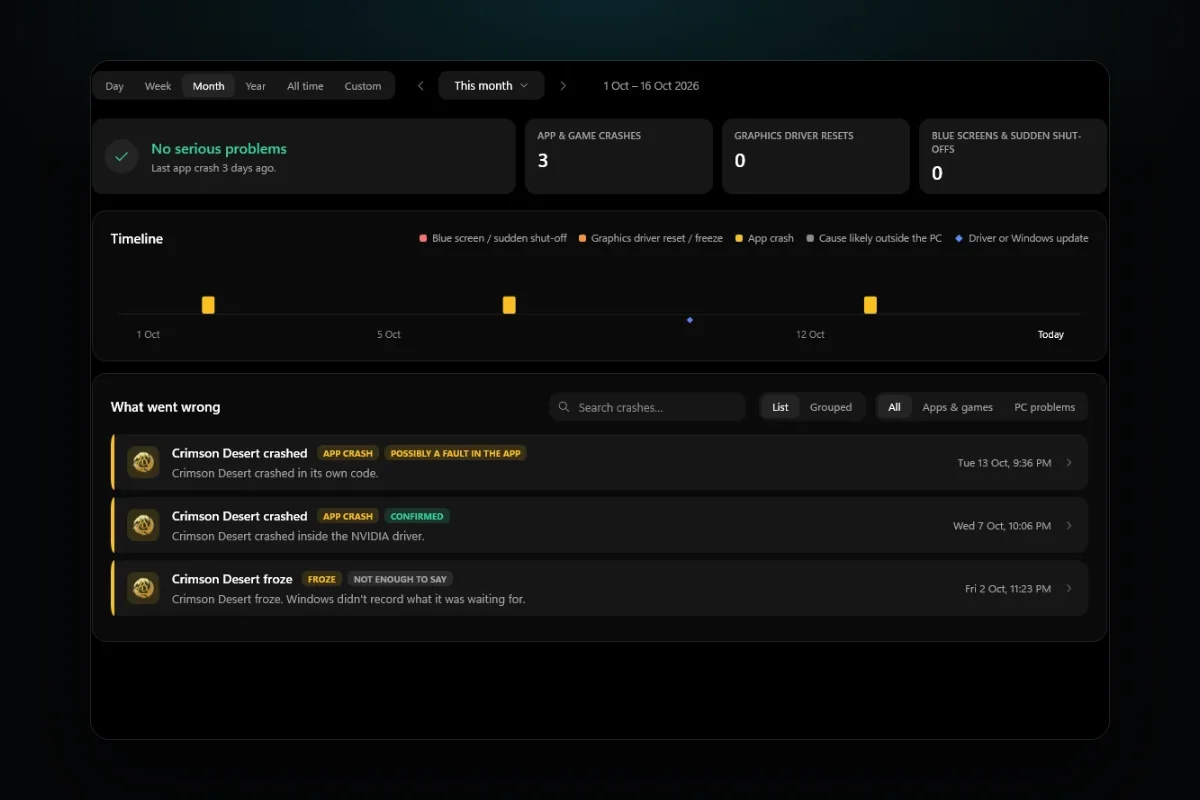
RigSight is a free, open-source Windows monitor. Its Crashes page reads the same Windows records this post walks through, for blue screens, sudden shut-offs, app crashes and freezes, and graphics driver resets. It lists them on one timeline with the stop codes and file names already pulled out. When it first runs, it reads up to 90 days back from Windows' logs, as far as they still reach.
My crash taught it something. Since 0.17.1, when an app goes down within two minutes of a graphics driver install, the Crashes page says which driver was being installed at that moment. That's the answer I had to work out by hand that day.
Every crash gets a plain sentence for the most likely cause and one word for how sure that is. The words are Confirmed when Windows' own record says so, Likely, Possibly, and Not enough to say. A blue screen whose driver Windows named reads as Confirmed. A shut-off that neither Windows nor RigSight has anything on says Not enough to say, rather than guessing.
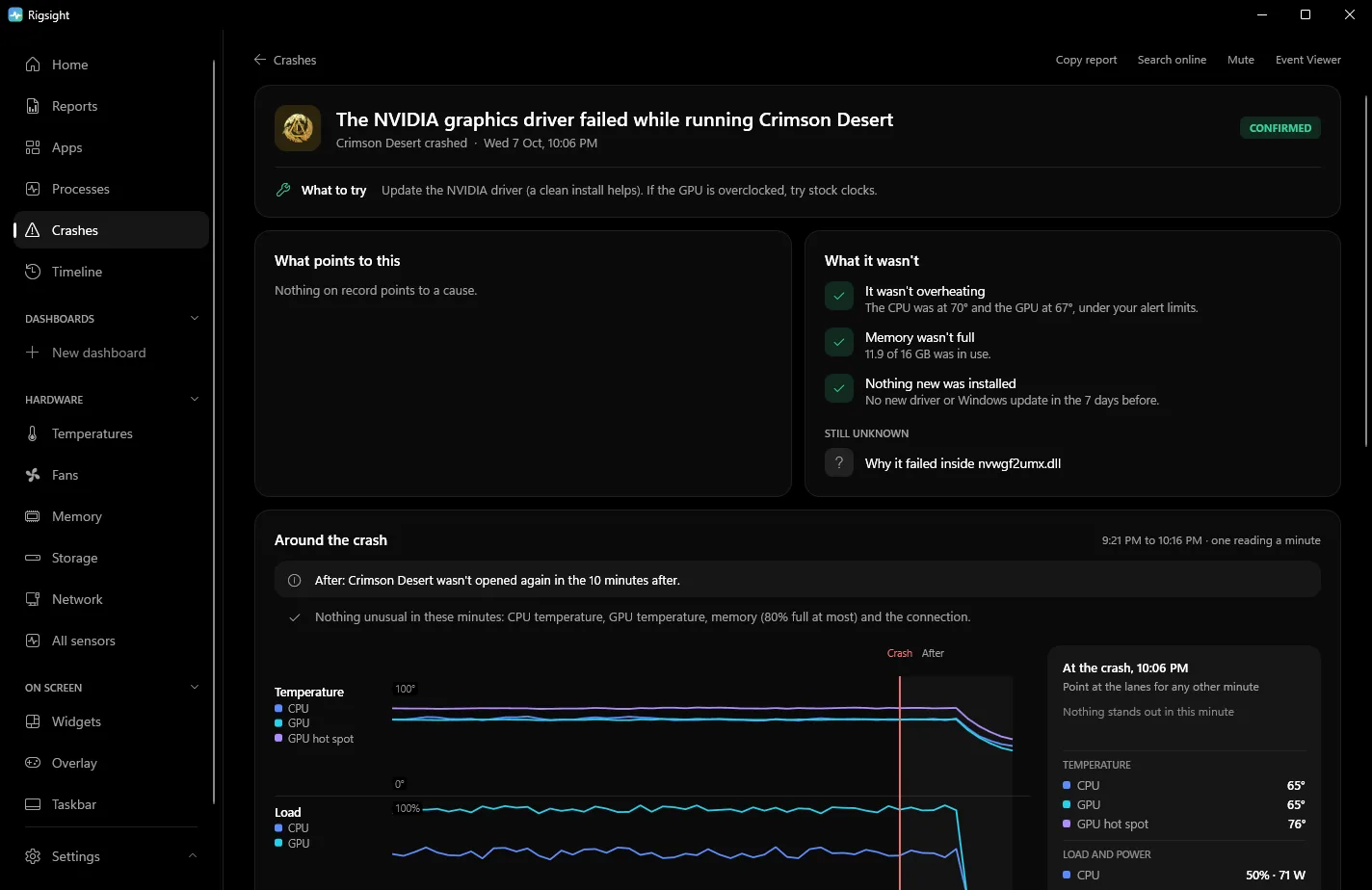
Open one and you get what Windows can't give you. RigSight shows the 45 minutes before the crash and the 10 after. You see temperatures, load, power, memory, fans and the network, with the apps doing the work. It lists what it ruled out, such as "It wasn't overheating", and any driver, Windows update, BIOS or hardware change from the week before. Copy report puts it all in a block of text for a forum post, and the Event Viewer button opens Windows' own log. CPU temperature and power need RigSight running with admin rights. The readings only exist from when RigSight started recording, so older crashes from Windows' logs show without them.
Why PCs crash
"Crash" covers a few different things, and each one has its own usual causes and leaves a different trail.
- A blue screen with a stop code. Windows itself hit an error it couldn't recover from and saved a report. On current Windows 11 it's a black screen that says your device ran into a problem, with the stop code in small text, and it only stays up for a couple of seconds. Microsoft estimates that about three quarters of stop errors come from faulty drivers.
- The PC just went off or restarted with no blue screen. Windows had no time to write anything, so the record is thin. Power is the usual suspect, whether that's the mains, the power supply or a held power button. Heat and unstable tuning can also do it.
- One game or app closed and the rest of Windows kept running. That's an app crash, logged separately. A bad update, a mod, an overlay or a driver change is the usual cause, like my driver install.
- The screen went black for a few seconds and came back. That's a graphics driver reset, a different problem again.
If you didn't see it happen, the tools below will tell you which one it was.
How to find out why your PC crashed in Reliability Monitor
Reliability Monitor is the easiest place to start. It puts every crash of the last year on a calendar.
- Click Start and type reliability.
- Open View reliability history. You can also press Win+R and run
perfmon /rel. - Click the column for the day it crashed. Red X marks are critical events.
- Double-click an entry in the list below the graph to see the technical details.
These are the entries that matter.
- "Windows was not properly shut down" means Windows didn't get to shut down cleanly. On its own, that means the PC lost power, was switched off by holding the power button, or froze so hard that Windows wrote nothing. After a blue screen you see it too, next to the BlueScreen entry below.
- "Shut down unexpectedly" with the problem name BlueScreen is a blue screen. The
BCCodeline is the stop code, such as124or116. - "Stopped working" under an app's name means that app crashed. The details name the file it crashed in.
Read the crash logs in Event Viewer
Event Viewer has the same events with more detail, and exact times.
- Right-click Start and choose Event Viewer.
- Open Windows Logs > System.
- In the right pane, click Filter Current Log.
- In the box that says <All Event IDs>, type
41,1001,6008,1074and click OK.
Now you only see the events that matter.
- Event 41 from Kernel-Power says "The system has rebooted without cleanly shutting down first." Windows writes it when the PC starts again. Click it and open the Details tab. If
BugcheckCodeis not 0, it was a blue screen. If it's 0, the PC lost power or was switched off. Kernel-Power 41 goes through every field. - Event 1001 from BugCheck says "The computer has rebooted from a bugcheck." This one gives the stop code in hex and the path of the dump file Windows saved.
- Event 6008 from EventLog says "The previous system shutdown was unexpected." It gives the time Windows last knew it was running. That time can be stale by some minutes.
- Event 1074 from User32 is a normal restart that a person or a program asked for. If you see one at the time of a "random" restart, it wasn't a crash. Windows Update is a common source.
For a game or app that closed, switch to Windows Logs > Application and filter for 1000 and 1002. Event 1000, Application Error, names the program, the faulting module and an exception code. Event 1002, Application Hang, is a program that froze and was closed. Games crashing to desktop goes through those fields.
Look for the minidump file
After a blue screen, Windows usually saves a small memory dump in C:\Windows\Minidump, one file per crash with the date in its name. Opening it takes a debugger. WinDbg is free from Microsoft. Open the file, run !analyze -v, and look for the line "Probably caused by". It often names a driver file such as nvlddmkm.sys.
You don't always need the dump. The stop code alone, from Reliability Monitor or Event Viewer, often says enough. If the Minidump folder is empty, open Settings > System > About > Advanced system settings, then Startup and Recovery > Settings, and set Write debugging information to Small memory dump or Automatic memory dump. The next blue screen will be saved. The small dumps go to the Minidump folder. The others are saved as C:\Windows\MEMORY.DMP.
What the evidence points to
- A stop code that names a driver. Update or reinstall that driver. If the crashes began after a new driver, roll it back. Blue screen causes lists the common codes.
- Codes like 0x124 WHEA_UNCORRECTABLE_ERROR or 0x101 CLOCK_WATCHDOG_TIMEOUT. The hardware reported the error. Undo any overclock or undervolt, including XMP or EXPO memory profiles, and check temperatures.
- Kernel-Power 41 with a code of 0. No blue screen was saved. Power is the usual suspect, then heat and tuning. Random restarts while gaming walks through it.
- The same app crashing in the same file. That program, a mod or an overlay is at fault, not the PC.
- Different apps crashing at random, with different codes each time. That leans toward memory, the drive or heat. Run Windows Memory Diagnostic from Start and check your drive's health.
Also look at what changed. Reliability Monitor lists installs under Informational events, and Settings > Windows Update > Update history shows what Windows installed. A crash that began right after a new driver arrived has a likely suspect, as mine did.
Your next step is to open Reliability Monitor now and find the red X for your crash. If it says BlueScreen, take the stop code to blue screen causes. If it says Windows was not properly shut down, go to Kernel-Power 41.
Questions people ask
How do I find out why my PC just crashed?
Open Reliability Monitor right away and look at today's column. A red X with Windows was not properly shut down means Windows didn't shut down cleanly. If a Shut down unexpectedly entry with the problem name BlueScreen sits next to it, Windows crashed, and its BCCode is the stop code. If it's alone, the PC lost power, was switched off or froze.
Where are the crash logs in Event Viewer on Windows 11?
Right-click Start, open Event Viewer, then go to Windows Logs, System for the PC going down and Windows Logs, Application for apps and games crashing. Use Filter Current Log and type 41,1001,6008 in the event IDs box to see only the crash entries.
How long does Event Viewer keep logs?
Each log has a size limit, often 20 MB for System and Application, and the oldest entries are dropped when it fills. On a busy PC that can be a few weeks or a few months. Reliability Monitor keeps about a year of its own history.
How do I figure out why my PC keeps crashing?
Write down the time of every crash and compare them. The same stop code or the same faulting file each time points to one driver or program. Different codes every time, or sudden shut-offs with no code at all, point more toward hardware, heat or power.