
PC problems · Drivers and updates
Why your power plan keeps changing to Balanced in Windows 11
My PC's plan hasn't moved in nearly two months, and Windows' log shows what a harmless entry looks like. Why your power plan keeps changing to Balanced in Windows 11, how to find the program doing it, and how to set it back.

The short answer
Windows rarely changes your power plan by itself. A maker's tool like Armoury Crate or Lenovo Vantage, a game booster or a chipset driver install usually does. Run powercfg /getactivescheme to see the active plan, check Event Viewer for UserModePowerService event 12 to see which program set it, then change that program's setting.
My PC runs a power plan called AMD Ryzen Balanced, which AMD's chipset driver added next to Windows' own plans. RigSight checks the active plan every minute, and since late September its Timeline hasn't recorded a single switch. Windows' own log has one entry about it, on 1 October, where a Windows process "reset" the plan from AMD Ryzen Balanced to the same AMD Ryzen Balanced. Nothing changed. That's what a quiet PC looks like. If your power plan keeps changing to Balanced in Windows 11, something on your PC is switching it, and Windows usually writes down what.
Test setup
- GPU
- NVIDIA GeForce RTX 3080 Ti, 12 GB
- CPU
- AMD Ryzen 7 5700X3D
- Memory
- 16 GB, 32 GB from 14 November 2026
- Windows
- Windows 11
- Power plan
- AMD Ryzen Balanced, added by the AMD chipset driver
- Recorded
- Active plan checked every minute, 29 September to 22 November 2026
- Counted
- Plan switches on the Timeline, and UserModePowerService event 12 in Windows' System log
The usual causes, in the order to check them:
- A maker's tool, like Armoury Crate, Lenovo Vantage, MSI Center or HP OMEN Gaming Hub, changing its performance mode.
- A game booster that sets a fast plan for a game and puts the old one back after.
- A chipset driver install that adds the maker's own plan and selects it.
- Windows' power mode in Settings, which only works on the Balanced plan.
- A work or school PC with the plan set by its administrator.
Check which power plan is active right now
Windows has two power settings that look alike, so start by checking the right one.
- Press Win + R, type powercfg.cpl and press Enter. This opens Power Options, where the selected plan is the power plan.
- Or open Command Prompt and type powercfg /getactivescheme. It prints the active plan's name and its ID.
- Type powercfg /list to see every plan on the PC. The one with a star next to it is active.
Keep that list open. The long IDs are how you will recognise the plans in Event Viewer later. The ones every PC has are Balanced, which starts 381b4222, High performance, which starts 8c5e7fda, and Power saver, which starts a1841308.
Power plan and power mode are not the same thing
Windows 11 also has Settings > System > Power & battery > Power mode, with Best power efficiency, Balanced and Best performance. That is the power mode, and it sits on top of the power plan.
Microsoft's documentation for PC makers says the power mode only appears when the Balanced plan, or a plan based on it, is selected. It also says that once a PC is on Balanced, there is no way back to High performance from the settings pages, only with the powercfg command. That explains a lot of what people see.
- If your Power Options window only lists Balanced, that is how many Windows 11 PCs ship. It isn't a fault.
- Choosing a power mode in Settings means using Balanced. If you pick High performance in Power Options, the power mode setting disappears.
- On a laptop, the power mode is set separately for plugged in and on battery, so unplugging can look like a change of plan.
For most people, the simple fix is to stay on Balanced and set Power mode to Best performance while plugged in. That's the setup Windows 11 is built around. If you really want High performance, carry on below.
What switches the power plan behind your back
- Laptop and motherboard maker tools. ASUS Armoury Crate, Lenovo Vantage, MSI Center, HP OMEN Gaming Hub, Dell and Alienware tools and others have their own performance or fan modes, and some of them work by setting the Windows power plan or power mode. Switching modes in the tool, or the tool starting with Windows, can change your plan.
- Game boosters and optimizers. These often set a fast plan when a game starts and put the old one back when it closes. If one crashes or is closed halfway, the plan can stay wrong.
- Chipset driver installs. Installing or updating a chipset driver can add the maker's own plan and select it. Older AMD chipset drivers added plans called AMD Ryzen Balanced and AMD Ryzen High Performance, and later versions stopped adding them for some Ryzen models.
- Battery tools on laptops can pick Power saver when you unplug.
- A work or school PC can have the plan set by its administrator through Group Policy, and it will change back however often you set it.
Find the program that changed it
Windows often records which program set the power plan. Here's how to look.
- Open Event Viewer and go to Windows Logs > System.
- Press Filter Current Log on the right.
- Under Event sources, pick UserModePowerService, and type 12 in the event ID box. Press OK.
- Open the entries near the time the plan changed. Each one names a program with its full path and says it set the plan from one ID to another.
Many of these entries are harmless, where the two IDs are the same and nothing really changed. The only one on my PC is like that, from dllhost.exe, a Windows process, on 1 October. Look for an entry where the two IDs differ and the second one matches the plan you didn't want. The program it names is your culprit. If it is a maker's tool, open it and look for a performance mode or power setting, and either pick the plan you want there or stop it from managing power. If you don't use the tool, you can stop it starting with Windows in Task Manager > Startup apps, and see whether the plan stays put.
If the log has nothing useful, do it by elimination. Turn off one startup program at a time, restart, and see whether the plan still changes.
Set the plan back
Once the program behind it is dealt with, set the plan you want in Power Options. If High performance isn't listed, the powercfg command can bring it back. Open Command Prompt as administrator and type this command.
powercfg /duplicatescheme 8c5e7fda-e8bf-4a96-9a85-a6e23a8c635c
That adds a copy of Windows' High performance plan, which then shows in Power Options and can be selected there. To go back to Balanced at any time, type powercfg /setactive SCHEME_BALANCED. None of this needs the registry, and it is easy to undo.
Before you fight hard for High performance, know what it does. It mainly stops the CPU from slowing down and sleeping when there is little to do. On modern desktop CPUs the difference in games is often small, and it uses more power at idle. Microsoft suggests that makers of gaming PCs consider giving the Balanced plan the same settings as High performance.
How RigSight caught it
The hard part of this problem is that the change is silent. You notice it hours later with no idea when it happened. RigSight checks the active power plan every minute while it runs and writes down every switch, which is how I know mine hasn't moved since late September.
Each switch is its own line on the Timeline, such as "Power plan changed to Balanced", with what it was before and the time RigSight noticed it. Pick Settings in the Timeline's filter to see only setting changes. The This PC now panel shows the plan you're on and since when.
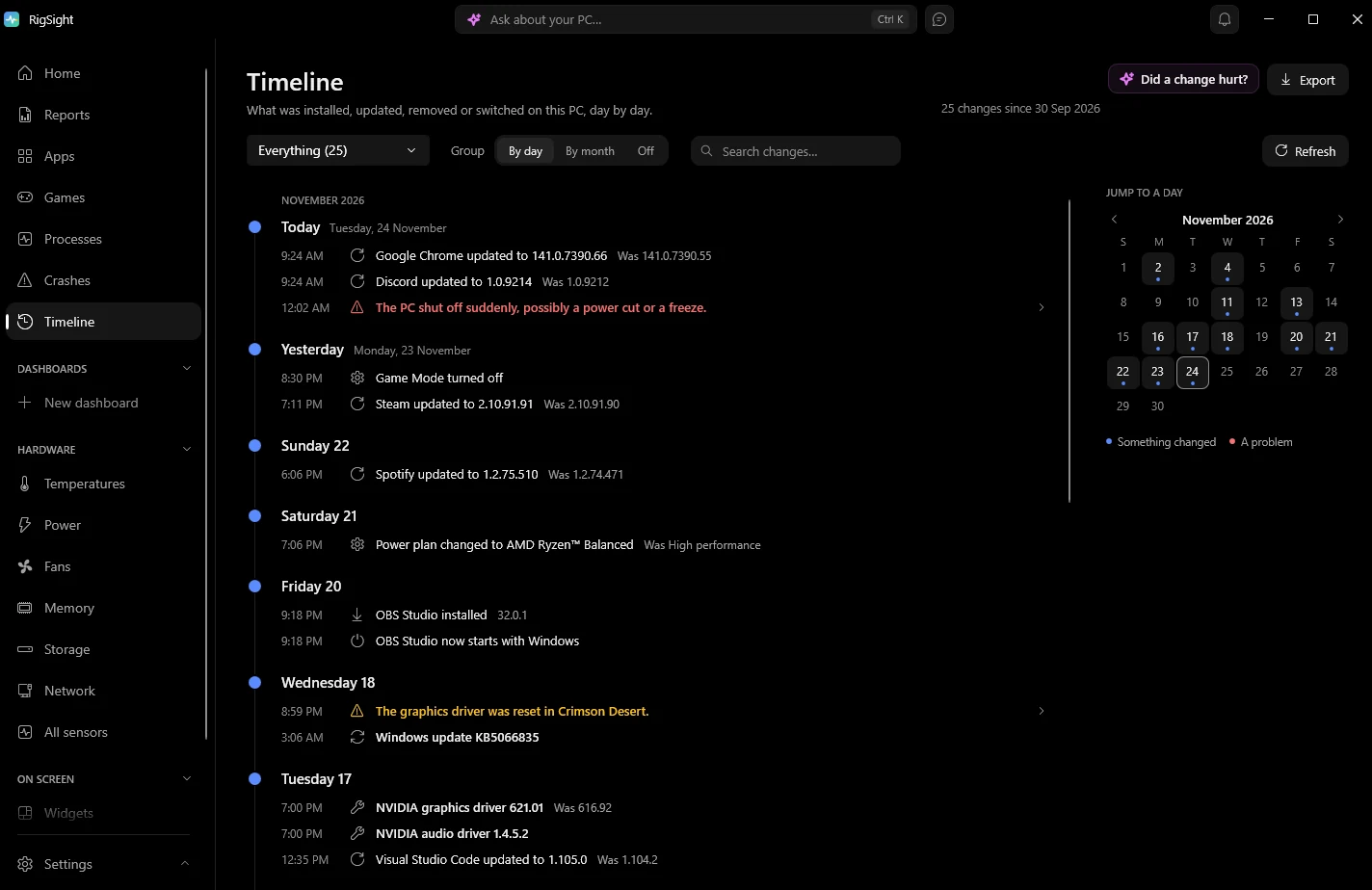
RigSight doesn't know which program made the switch. It gives you the time, and that makes the Event Viewer search above quick, because you only need the UserModePowerService entries from that minute. The same day on the Timeline also shows whether an app or a driver was installed or updated just before, which often answers it on its own.
A power plan change also counts as a big change. If a game ran clearly hotter or cooler after it, the Timeline says so under the change, and if it got worse, it suggests switching back to the plan you had. RigSight is free and open source.
Your next step is to open Event Viewer and look for the last UserModePowerService event 12 where the two plan IDs differ. If it names a maker's tool, change the setting in that tool first. Most of the time the plan then stays where you put it.
Sources
- Microsoft Learn, Customize power slider
- Microsoft Learn, Powercfg command line options
- winevt-kb.readthedocs.io, Provider Microsoft Windows UserModePowerService
- Eleven Forum, Latest
- appuals.com, Windows keeps changing the assigned power plan
- Eleven Forum, Missing high performance power scheme confusion
- bit-tech.net, Amd ryzen power plan release
- community.amd.com:443, Ba p
- forums.veeam.com, Viewtopic
- How RigSight measures, how the numbers from my PC were recorded
Questions people ask
Why does my power plan keep changing to Balanced?
Usually because another program sets it. Laptop and motherboard maker tools, game boosters and driver installers can all switch the plan, often when you change their performance mode or start a game. Windows' power mode in Settings also only works on the Balanced plan.
Is High performance better than Balanced for gaming?
Balanced is Windows' default and lets the CPU slow down when there's little to do. On modern desktops the gaming difference is often small, and Microsoft suggests that makers of gaming PCs consider giving Balanced the same settings as High performance. If you want more speed, set Power mode to Best performance under the Balanced plan.
Why does my Windows 11 power plan keep changing to High performance or Power saver?
Same causes, other direction. A maker's tool or a game booster can pick High performance when a game starts, and battery tools can pick Power saver when you unplug a laptop. Find the program with Event Viewer and change its setting.
Why is High performance missing from Power Options?
Many Windows 11 PCs only show Balanced. Microsoft's notes for PC makers say that once a PC is on Balanced, there's no way back to High performance from the settings pages, only from the powercfg command.