
PC problems · Drivers and updates
Did a Windows update cause your crashes? How to check
My PC's August blue screens came a day before that month's Windows update, not after it. How to tell whether a Windows update caused your crashes or an FPS drop, by lining up the dates, and how to undo one.
The short answer
Open Settings, Windows Update, Update history and note the install dates, then open Reliability Monitor and see whether the crashes start on that day. Check Microsoft's release health page for known issues. If it lines up, uninstall the update under Uninstall updates and pause updates for a week while you test.
My PC had two blue screens in August, on the 11th and the 22nd. On the evening of 23 August, Windows installed that month's security update, KB5121003. If I had only remembered "blue screens, and an update around then", I could easily have blamed the update. The dates say otherwise. Both blue screens came before it, and the third one, on 9 September, came 17 days after it with no other Windows update in between.
Test setup
- GPU
- NVIDIA GeForce RTX 3080 Ti, 12 GB
- CPU
- AMD Ryzen 7 5700X3D
- Memory
- 16 GB, 32 GB from 14 November 2026
- Windows
- Windows 11
- Recorded
- Windows updates and crashes from Windows' own records, May to November 2026
- Counted
- Each Windows update by its install time, each blue screen by its time
That's how you answer "did a Windows update cause my crashes?". Sometimes it did. More often the update just happened the same week as something else. Line up the dates, and Windows already keeps the records you need.
- Crashes that start on the day an update installed, and were rare before, make the update a real suspect.
- Crashes that were already there the week before mean the update didn't start them.
- A driver update the same day, especially a graphics driver, is often the better suspect.
- A problem Microsoft lists for that update on its release health pages is close to a confirmation.
Step 1. See what was installed and when
- Open Settings > Windows Update > Update history.
- Look at the dates under Quality updates, Driver updates and Feature updates.
- Write down any update installed in the day or two before the trouble started.
Pay most attention to Driver updates. Windows Update can install a graphics, audio or chipset driver on its own, and a new graphics driver is a likely suspect for game crashes. If a graphics driver is on the list, start with games crashing after a graphics driver update.
A feature update, the big yearly version change, also deserves a look. It replaces much more of Windows and can bring back default settings.
Step 2. Line the crashes up in Reliability Monitor
Reliability Monitor is the easiest place in Windows to see crashes and updates on the same chart.
- Search Start for reliability and open View reliability history.
- Switch the view to Days. Each column is one day.
- Red marks are critical events such as app crashes and Windows shutting down unexpectedly. Blue marks are information, including each Windows update that installed.
- Click a day to see the list of events at the bottom.
What you are looking for is a clear before and after, as in the list at the top. If the crashes are blue screens or the PC restarting by itself, the codes in those events matter more than the update, and how to find out why your PC crashed covers reading them.
Step 3. Check whether Microsoft already knows
Microsoft keeps a list of known problems for each Windows version on its Windows release health pages. Search the page for the KB number from your Update history. Game problems have shown up there before. In 2022, for example, Microsoft listed lower than expected performance in some games on Windows 11 version 22H2 and fixed it in a later update. If your problem is listed, the page usually says whether a fix or a workaround exists, and you may only need to wait or install the next update.
Step 4. Uninstall the update to test it
If the dates line up and nothing else changed, remove the update and see whether the problem goes away. It's not something to do casually, because most updates include security fixes, and some can't be uninstalled.
- Open Settings > Windows Update > Update history.
- Scroll down to Related settings and pick Uninstall updates.
- Find the update by its KB number and press Uninstall.
- Restart the PC.
Then go back to Settings > Windows Update and pick Pause updates, or Windows may install the same update again. Play as you normally would for a few days. If the crashes stop, you found it. Resume updates once Microsoft's release health page shows a fix.
After a feature update, the way back is different. Windows keeps the previous version for a limited time, in most cases 10 days, and Settings > System > Recovery > Go back returns to it while that option is still there. Your files stay, but apps and drivers installed since the upgrade are removed.
If the problem is an FPS drop in games after a Windows update
An FPS drop is harder to prove than a crash, because frame rate changes with the scene, the game's own patches and even the room's temperature. Compare like for like, with the same game, the same settings and the same spot before and after. Then check what an update can change.
- The graphics driver. If Windows Update installed its own graphics driver, it can be older than the one you had. Check the version in Device Manager > Display adapters and install the current driver from NVIDIA, AMD or Intel.
- Memory integrity. Microsoft says memory integrity and Virtual Machine Platform can cost performance in some games on some PCs, and that gamers may turn them off while playing. Memory integrity is under Windows Security > Device security > Core isolation details. Turning it off makes the PC less protected, so turn it back on when you're done.
- Game Mode and graphics settings. Check that Settings > Gaming > Game Mode is still on, and look at Settings > System > Display > Graphics for the GPU each game is set to use.
- The power plan. If the plan switched to Balanced or Power saver, the CPU can clock down. See why your power plan keeps changing.
How RigSight caught it
The dates at the top came from RigSight's Timeline, which writes down every Windows update by its KB number with the time it installed, next to driver installs, Windows version upgrades and setting changes such as Game Mode, memory integrity and hardware-accelerated GPU scheduling. Pick Windows in the Timeline's filter to see only the updates. It also reads Windows' own log of installed updates, so updates from before RigSight was installed show up too, as far back as that log goes.
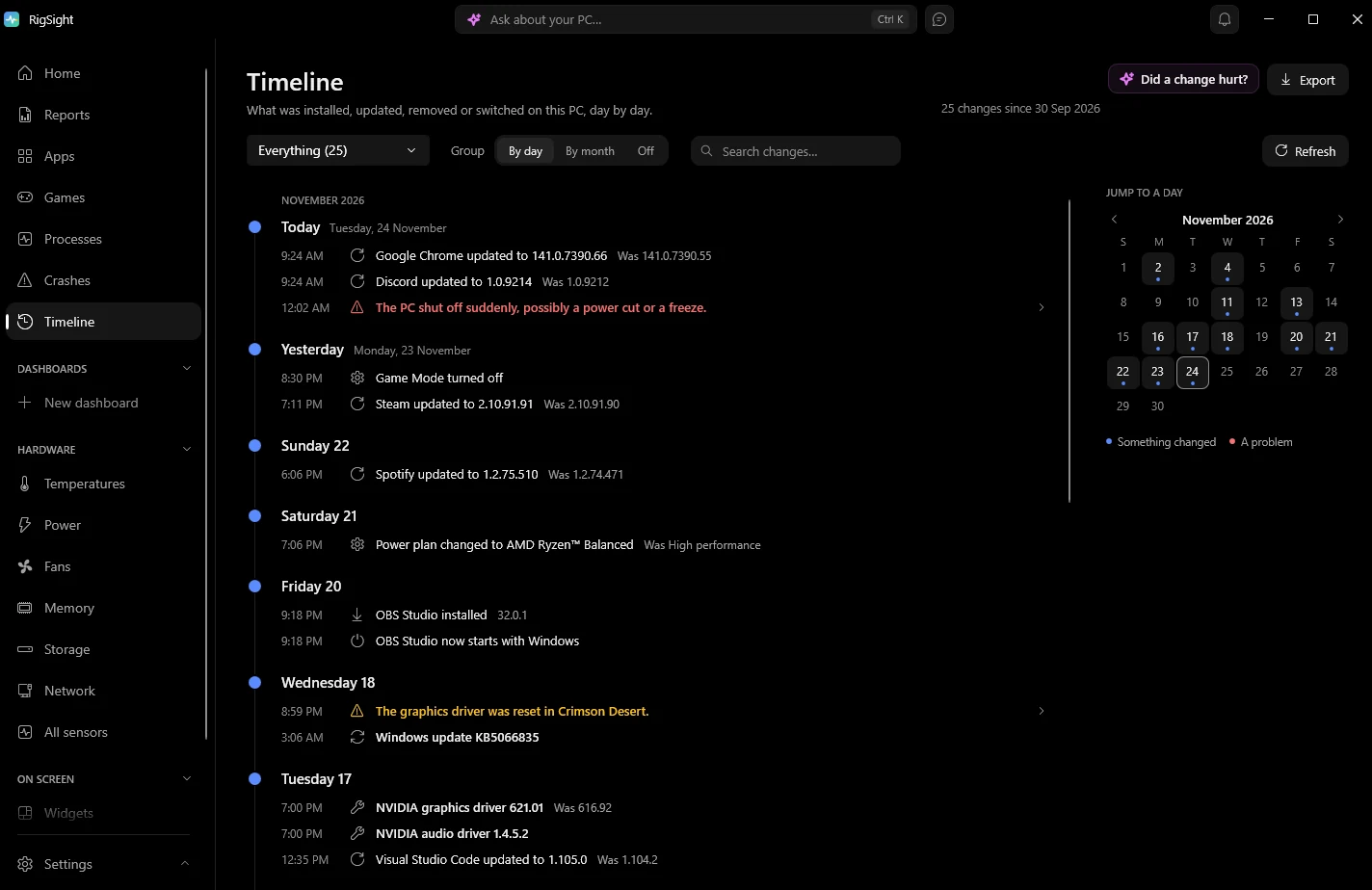
An opened crash on the Crashes page has a What changed in the 7 days before list, with the drivers and Windows updates from that week. For a Windows update, a graphics driver, a BIOS update or a power plan change, RigSight also checks whether the PC got better or worse after it, comparing the same game at the same load before and since. When something moved, the Timeline says so under the change, and the Before and after filter lists only those. A change with no line under it made no difference RigSight could measure.
For frame rates, each game's page on Games shows every play with its average FPS and 1% low, with the Windows updates and drivers that came in between. RigSight records frame rates itself when it has admin rights, and from RivaTuner Statistics Server without them. RigSight is free and open source.
Your next step is to open Update history and Reliability Monitor side by side and find the first day of the trouble. If an update installed that day and nothing else changed, uninstall it and pause updates for a week. If the trouble started earlier, the update was a coincidence, and the cause is somewhere else in that week.
Sources
- Microsoft Support, Uninstall updates in windows
- Microsoft Learn, Release health
- betanews.com, Microsoft says that gamers can boost performance by lowering windows 11 security settings
- Pureinfotech, Windows 11 22h2 fixes gaming performance issues
- Microsoft Support, Update drivers through device manager in windows
- Eleven Forum, View reliability history in windows 11
- Pureinfotech, Uninstall update windows
- Microsoft Support
- Eleven Forum, Options to optimize gaming performance in windows 11
- How RigSight measures, how the numbers from my PC were recorded
Questions people ask
Can a Windows update cause crashes?
Yes, though less often than people think. An update can bring a bug, a new graphics driver or a changed setting. Many crashes that start after an update have another cause that happened the same week, so check the dates before you blame it.
Why did my FPS drop in games after a Windows update?
Common reasons are a graphics driver Windows installed by itself, a setting such as memory integrity being turned on, or a power plan that changed. Microsoft has also listed game performance problems as known issues for some updates. Compare the same game, same settings and same scene before and after.
Is it safe to uninstall a Windows update?
Yes, from Settings, but many updates carry security fixes, and some updates can't be removed at all. Uninstall it only to test, pause updates for a while, and install it again once a fix comes out.
How do I see what Windows updates were installed?
Go to Settings, Windows Update, Update history. It lists quality, driver, feature and definition updates with the date each was installed.