
PC problems · Apps
Screen time on PC, and how to check it on Windows 11 and 10
Last week RigSight counted 92 active hours on my PC, 54 of them in games, and Windows could have told me none of it. How to check screen time on a Windows 11 or 10 PC, per app and per game, and what each tool really counts.
The short answer
Windows has no screen time report for your own adult account like phones have. Microsoft Family Safety reports app and game time for family members, Steam shows play time per game, and laptops show battery use per app. For your own time per app and per game, you need an app that records it.
Last week, 16 to 22 November, my PC was on for about 100 hours. RigSight counted 92 of them as active, and 54 of those in games. CONTROL Resonant alone took 23 and a half hours, ahead of Chrome at 16. Windows couldn't have told me any of that. If you want your screen time on a Windows 11 or 10 PC, how long each app took, or how much time you spend gaming, here's what Windows shows you and where it stops.
Test setup
- GPU
- NVIDIA GeForce RTX 3080 Ti, 12 GB
- CPU
- AMD Ryzen 7 5700X3D
- Memory
- 16 GB, 32 GB from 14 November 2026
- Windows
- Windows 11
- Recorded
- The app in front and whether I was at the PC, every minute, 16 to 22 November 2026
- Counted
- Away after 5 minutes without input, with full screen apps counted as in use
Those settings matter. With full screen apps counted as in use, a game in front counts through cutscenes and pauses, even when I don't touch the mouse, so my gaming hours are the time a game was in front, not the time I was pressing keys. Here's where each kind of screen time lives on a PC:
| What you want | Where to look |
|---|---|
| Your own time per app, per day | An app that records it, like RigSight, since Windows has none for your own account |
| A child's screen time and limits | Microsoft Family Safety, for members of a family group |
| Time per game | Each launcher's own count, like the hours on a game's page in Steam |
| Battery use per app on a laptop | Settings > System > Power & battery |
Does Windows have screen time?
Not for your own account. Windows has no screen time page for an adult using their own PC, on Windows 11 or Windows 10. What it has is a few tools built for other jobs that each show a part of the picture.
Microsoft Family Safety, for family members
Microsoft Family Safety is the closest thing Windows has to phone screen time. A family organizer can see which apps and games another member of the family group used, and for how long, by day and by week. It is built for parents keeping an eye on a child's account.
- Sign in at family.microsoft.com, or in the Microsoft Family Safety app, with the organizer's Microsoft account.
- Add the family member, who needs their own Microsoft account and signs in to Windows with it.
- Open the member's page and turn on Activity reporting.
- Open Screen time to see time per device, app and game.
Only family organizers can turn activity reporting on or off and see the reports. Idle time counts toward time limits but not toward the report, so the report can be lower than the limit suggests.
Set screen time limits on a PC
If what you want is to set screen time on a PC rather than check it, Family Safety does that too, again for members of a family group. The organizer can set screen time limits for Windows, Xbox and Android, and limits for single apps and games, each with a daily time and the hours it is allowed, the same every day or different per weekday. When time runs out, the member can ask for more, and the organizer decides. Time limits don't cover websites, which are blocked separately.
For yourself, Windows has no limit switch. The honest route is to measure first. Limits set from a guess tend to feel wrong, while a week of real numbers shows which app is worth limiting.
Battery usage on a laptop
On a laptop, open Settings > System > Power & battery and expand Battery usage. Pick Last 7 days and sort the apps by In use or Background. This shows how much battery each app used, not how long you used it. It only covers time on battery, and a desktop PC doesn't have this page at all.
Task Manager's App history
Task Manager has an App history tab. It shows CPU time and network use per app since a date, not how long the app was open or in front. An app can sit open all day and use almost no CPU time, so it is not a screen time figure.
How much time do I spend gaming?
Each launcher counts its own games. In Steam, your library shows the hours you have played on each game's page. Other launchers keep their own counts in different places, and some only show when you last played. None of them adds up all your launchers, or splits your gaming by day so you can see a week at a glance. If you play games from several launchers, which most people do, you have to add it up yourself.
What should count as screen time
Before you trust any number, it helps to know what it counted. A useful screen time figure counts time when an app was in front and you were actually at the PC. That leaves out an app open behind others, a PC left on overnight, and time asleep. The tricky case is a film or a game cutscene, where you don't touch the mouse or keyboard for a long time but are still watching. A good tool lets you decide whether full screen apps count.
How RigSight caught it
The numbers at the top come from RigSight, a free and open source PC monitor that records which app is in front, and whether you're at the PC, all day, and keeps it on your PC.
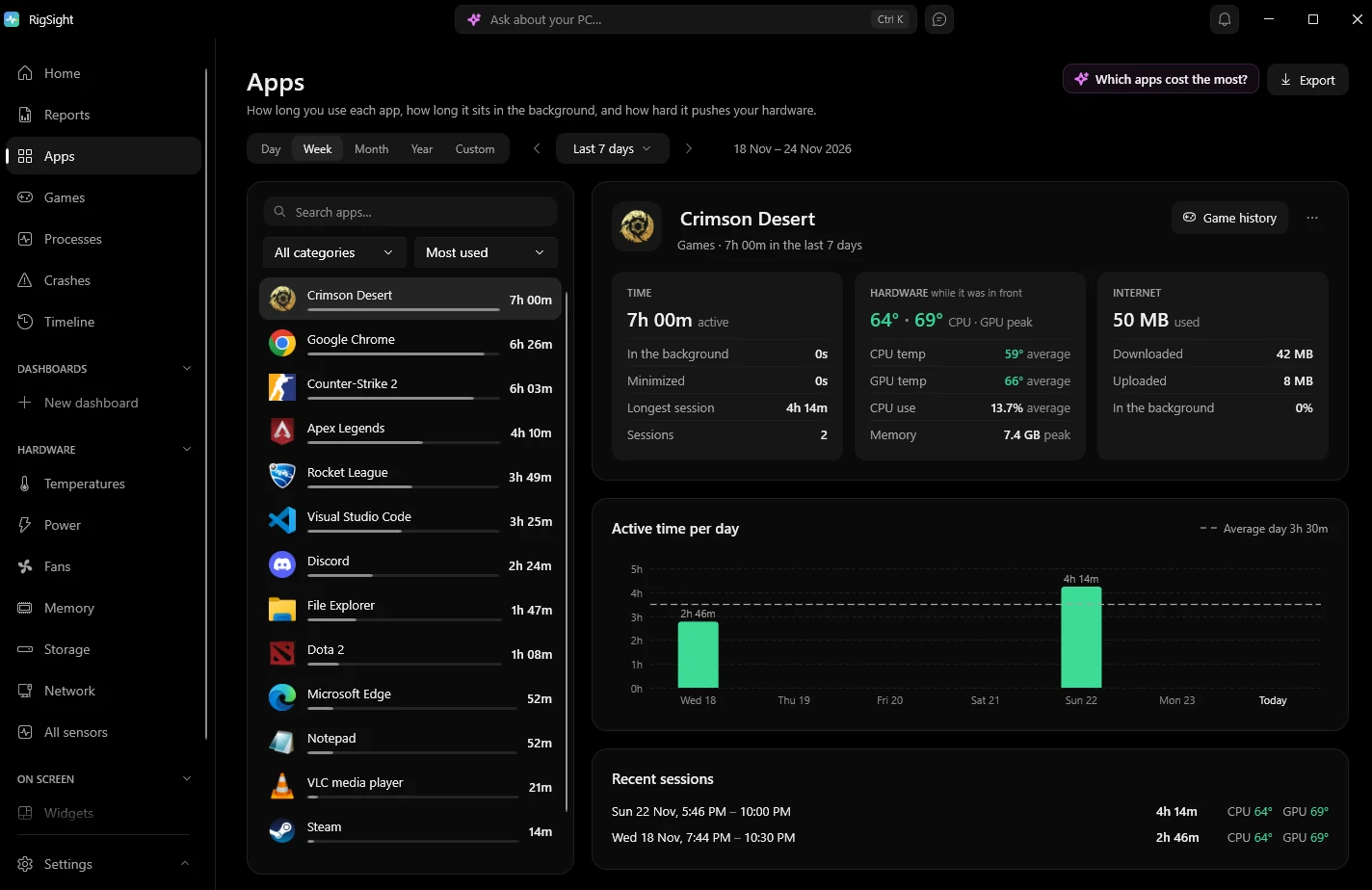
Home has a Today so far card with your active time, how long the PC has been on, time away and your most used apps. The Apps page lists every app with its active time for a day, week, month, year, all time or a custom range. Open one to see its time in front, in the background and minimized, its longest session, how many sessions you had, and a chart of its active time across the period.
For gaming, Reports shows time in games beside your active time for any day, week, month or year, and Where the time went splits your time by kind of app, such as games, browsing and development. A strip shows your day minute by minute, coloured by the app in front. The Games page shows each game's total time played, whichever launcher it came from, how many times you played it and your longest play.
Reports also puts your usual beside each week and month, so you can see whether this week's gaming was more than normal for you, and Home's recap says plainly when a day ran longer or shorter than your usual for that weekday.
In Settings you choose after how many minutes without input you count as away, from 2 to 15 minutes, and whether full screen apps count as in use, so films and games are counted while you watch. Tracking can be paused for an hour or until you resume it. Your history stays on your PC.
Your next step is to write down your guess for this week's hours, per app and in games, then record a full week before you decide anything. A single day says little.
Sources
- Microsoft Support
- Microsoft Support
- Microsoft Support, Set app and game limits
- Microsoft Support, Troubleshooting microsoft family safety
- Eleven Forum, Check battery usage per app in windows 11
- Eleven Forum, Turn on or off show app history for all processes in task manager in windows 11
- Microsoft Support, View device and app use with family safety activity reporting
- Microsoft Support, Troubleshooting microsoft family safety
- Microsoft Support, Set screen time limits across devices
- How RigSight measures, how the numbers from my PC were recorded
Questions people ask
Does Windows 11 have screen time?
Not for your own account. Microsoft Family Safety shows screen time and app use, but only to a family organizer about other members of the family group. Laptops show battery use per app in Settings > System > Power & battery, which isn't the same as time.
How do I check screen time on my PC?
Use an app that records which app is in front while you are at the PC. RigSight does this and shows today's active time on Home, and each app's time on the Apps page for any day, week, month or year. For family members, Microsoft Family Safety has a Screen time report.
How much time do I spend gaming?
Steam shows the hours you have played each game on its page in your library, and other launchers keep their own counts. To see all your games together, by day or week, you need something that records them all, such as RigSight's Reports and Games pages.
How much time should I spend playing video games?
There is no number that fits everyone. A better check than a figure is what the time replaces, such as sleep, work or school, time outside or time with people. Seeing your real hours per week, instead of a guess, is a good place to start.