
PC problems · Storage and memory
SSD health check on Windows 11, and why mine says Healthy at 70%
The SSD Windows runs on in my PC says Healthy and has used 30% of its rated life. How to do an SSD health check on Windows 11, why Healthy and life left are two different readings, and what RigSight tells you when either one changes.
The short answer
For an SSD health check on Windows 11, open Settings > System > Storage > Advanced storage settings > Disks & volumes and pick the drive. That only covers NVMe SSDs. For any drive, run Get-PhysicalDisk in PowerShell or use CrystalDiskInfo. Read both the health status and the life left, since a healthy drive can have used a lot of its life.
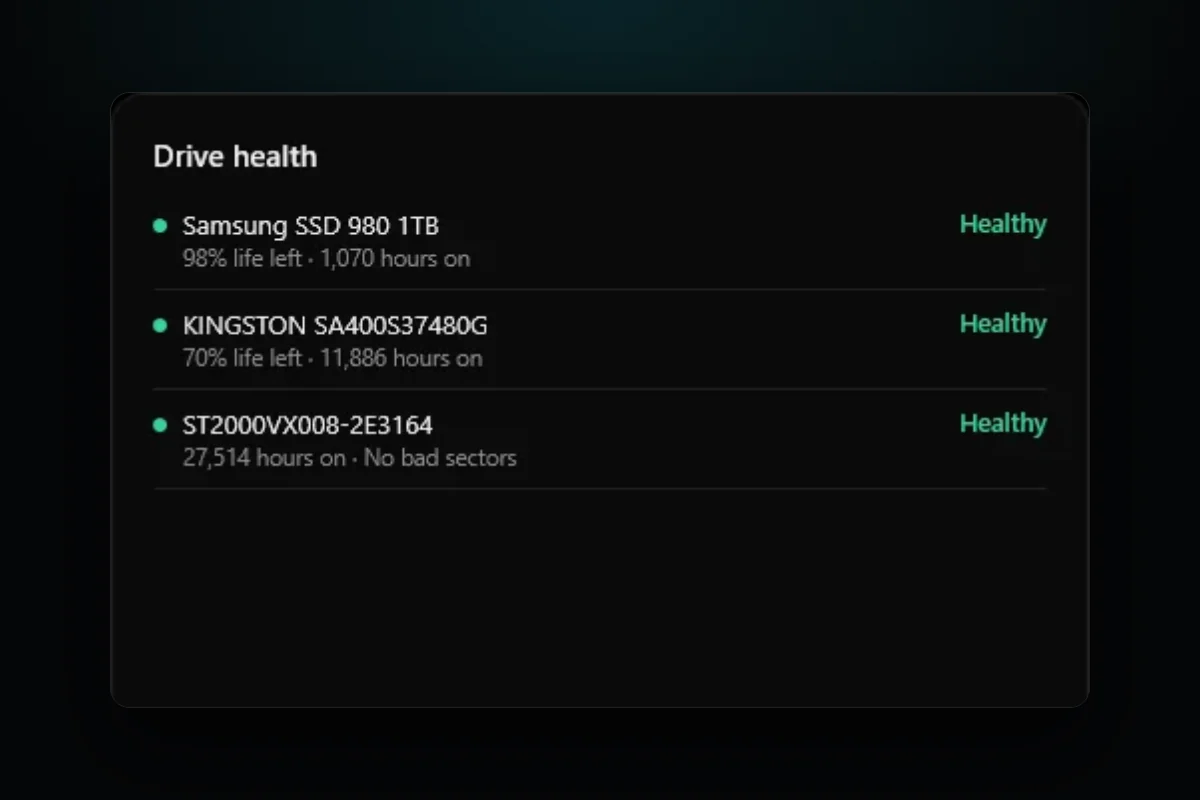
My PC has three drives, and every health check I run calls all of them Healthy. But the Kingston SSD that Windows runs on reports 69% of its rated life left today, after 12,387 hours on. The newer Samsung SSD my games sit on reports 97%. Both are Healthy, and they're in very different places. That's the thing to know before an SSD health check on Windows 11. It gives you two readings, and they answer different questions.
How RigSight caught it
RigSight's Storage page lists every drive with its health, the life left an SSD reports, its temperature and how much was written in the last 7 days. A drive that needs a look sits on top. Open one and it answers "Is this drive okay?" in plain words, with its hours on, how it compares with weeks or months ago, and every reading it gives in plain words. The health is one word, Healthy, Early warning or Failing.
That word takes the worse of two things. One is SMART, the drive's own health check. The other is life left, because SMART can still say Good on an SSD that has used nearly all of its rated writes. An SSD at 10% life left or less shows Early warning, with "The drive reports almost all of its rated life used. Keep a backup of what's on it." Bad sectors give "Bad sectors are an early warning. Keep a backup, and watch whether the count grows." Only SMART reporting a failure makes a drive Failing.
RigSight also tells you when a drive changes, so you don't have to remember to look. Since 1.7.0, a failure comes as an urgent notification, "Your Samsung SSD 980 1TB reports a failure", telling you to back up now. Early warning signs, new or more bad sectors, and 10% life left or less each come once, and the bad sectors one gives the count and what it was before. Since 1.12.0, an SSD that reaches half or a quarter of its life left gets a notification with how fast it has been wearing, and a drive that reaches its own warning temperature gets one too. Each has its own switch in Settings, Drive health, Drive life milestones, Drive temperature and Drive almost full.
On my PC, RigSight's log shows it checking all three drives several times an hour, and they're still Good. My Kingston went from 70% in October to 69% now, about 500 hours on later. RigSight hasn't sent a single drive notification, which is how it should be. Drive health needs RigSight to run with admin rights, and RigSight is free and open source.
Healthy and life left are different readings
The health status is the drive's own pass or fail. It turns to Warning or Bad when something the drive tracks crosses the line its maker set, like errors it couldn't fix or spare memory running out.
Life left is wear. SSDs wear a little with every write, and makers rate how much they can take. 70% left means the drive estimates it has used about 30% of that. It's an estimate, and drives often keep working past 0%. Most home PCs write far less than the rating, so this number usually falls slowly. My Windows drive took nearly 12,000 hours on to use its 30%, so at that pace it has years of use left.
A drive can be Healthy at 70%, and a drive can fail at 98% without warning, from a controller fault for example. A health check makes a surprise less likely. Only a backup protects your files.
How to do an SSD health check on Windows 11 in Settings
Windows has a drive health page built in, but Microsoft says it only covers NVMe SSDs, which most of the small stick drives in an M.2 slot are. My Kingston is a SATA SSD, so this page has nothing to say about the drive Windows itself runs on. SATA SSDs, M.2 SATA drives and hard drives need PowerShell or software instead.
- Open Settings with Windows+I.
- Go to System > Storage.
- Under Storage management, open Advanced storage settings > Disks & volumes.
- Pick your SSD and select Properties.
- Read the Drive health section.
It shows estimated remaining life, available spare, which is the extra memory the drive keeps to replace worn cells, and the temperature. If the drive reports a problem, Windows shows a warning such as "Reliability is degraded" and asks you to back up. Windows 10 has the same page under Settings > System > Storage > Manage disks and volumes.
Check SSD health in Windows 11 with PowerShell
PowerShell reads any drive, SATA or NVMe. The old wmic diskdrive get status no longer works, because Microsoft has removed WMIC from current Windows 11.
- Right click the Start button and choose Terminal (Admin).
- For the health status, run this.
Get-PhysicalDisk | Select-Object FriendlyName, MediaType, HealthStatus, OperationalStatus - For wear and errors, run this one. It needs the admin window.
Get-PhysicalDisk | Get-StorageReliabilityCounter | Select-Object DeviceId, Wear, Temperature, PowerOnHours, ReadErrorsUncorrected, WriteErrorsUncorrected
HealthStatus should say Healthy, as all three of mine did today. Warning or Unhealthy means back up now. Wear counts up, so it's the opposite of life left. A new drive reads 0, and Microsoft describes 100 as the point where the rated wear is reached. Some drives leave it empty. The uncorrected error counts should be 0.
Free SSD health check software
CrystalDiskInfo is free, small and reads almost any drive. Each drive gets a box marked Good, Caution or Bad, with a percentage for SSDs, and below it the full SMART table, the hours on and the total data written.
Most SSD makers also have a free tool for their own drives, such as Samsung Magician, Sandisk Dashboard for WD and Sandisk drives, Crucial Storage Executive and Kingston SSD Manager. They show health in the maker's own terms and can update the drive's firmware, which sometimes fixes bugs. Back up before a firmware update, and only update with the maker's own tool.
Signs your SSD is dying
- The health status says Warning, Caution, Bad or Unhealthy.
- Reallocated, pending or uncorrectable sectors that keep growing. A few that never change aren't an emergency. A count that climbs is the clearest sign.
- Available spare under the drive's threshold, which Windows reports as a warning.
- Files that won't open or copy, and the PC freezing for seconds when it reads the drive.
Low life left with none of these means the drive has used most of its rated writes. Keep a backup and plan a replacement, but it isn't failing yet.
What to do if your SSD isn't healthy
- Back up what matters now, to another drive or a cloud service.
- Check the maker's tool for a firmware update.
- Check the warranty. Many SSD warranties cover a set number of years or a written total, whichever comes first.
- Plan to replace the drive, and check it every week until you do.
If the drive is just full, that's a different problem, and what is taking up space on your C drive helps with that.
Your next step is to run the first PowerShell command or the Settings check today, and write down each SSD's life left. Checking again in a few months tells you how fast it wears, which one reading never can.
Questions people ask
How do I do an SSD health check on Windows 11?
Open Settings > System > Storage > Advanced storage settings > Disks & volumes, pick the SSD and select Properties. Drive health shows estimated remaining life, available spare and temperature, for NVMe SSDs only. For SATA SSDs, run Get-PhysicalDisk in PowerShell or use CrystalDiskInfo.
What is a good SSD health percentage?
Anything well above 10% is fine for daily use. The number is the drive's own estimate of its rated write life left, and a home PC that mostly games and browses usually uses it up slowly. When it gets low, keep a good backup and plan a replacement. A drive at 0% doesn't stop working that day.
What are the signs my SSD is dying?
A health status of Warning or Bad, a growing count of reallocated, pending or uncorrectable sectors, files that won't open or copy, and the PC freezing on disk access. A low life left on its own means the drive has used most of its rated writes, which is a reason to keep a backup, not proof it's failing.
What is the best free SSD health check software?
CrystalDiskInfo is the best known free SSD health checker and reads SMART data from almost any drive. Your SSD maker's own tool, like Samsung Magician, Sandisk Dashboard, Crucial Storage Executive or Kingston SSD Manager, also shows health and can update the drive's firmware.
Can I still check SSD health with wmic or chkdsk?
Not with wmic on current Windows 11, because Microsoft has removed it. Use Get-PhysicalDisk in PowerShell instead. Chkdsk checks the file system, the way files are organised, and doesn't read the SSD's wear or SMART data.