
PC problems · FPS and games
FPS drops in games and how to catch what causes them
FPS drops in games come from heat, background apps, power settings, drivers, a full graphics memory or a frame cap. How RigSight records every play so you can see which one, and how to fix it.
The short answer
Measure before you change anything. Turn on an FPS counter with GPU load and temperature, then watch when the drop happens. A drop after 10 or 20 minutes points to heat. Low GPU load points to the CPU or a cap. A drop that started on one day points to an update or a driver.
A commenter told me their Windows power plan kept switching from High performance to Balanced on its own, and they couldn't tell when it happened. That is the trouble with FPS drops in games. The cause usually changes quietly, before you start looking. It can be a power plan, a driver, a Windows update, a background download or a warm room. By the time the game feels slow, the moment that caused it is gone.
How RigSight catches an FPS drop
The power plan now has its own line on RigSight's Timeline. Every switch is listed with the day and time and what the plan was before, next to every driver, Windows update and setting change. So a drop that started on Thursday can be laid next to whatever changed on Thursday.
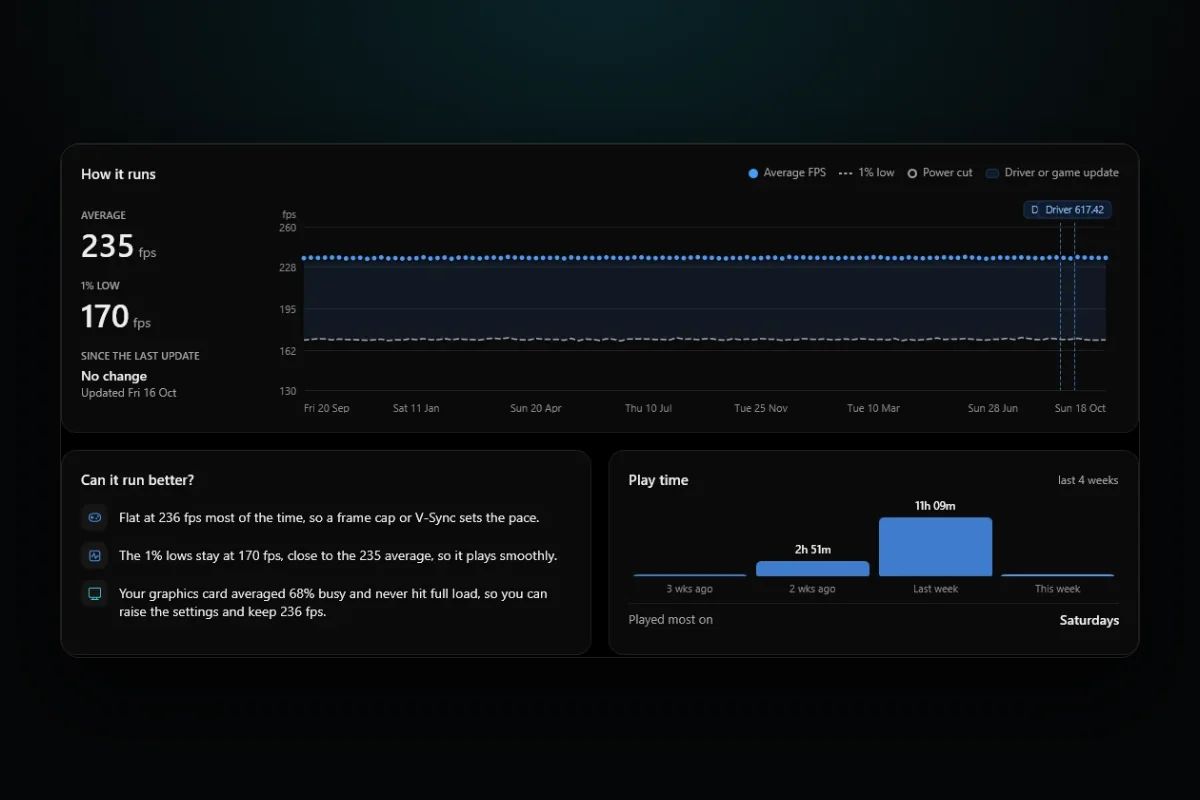
RigSight is free and open source, and it records each play of each game on its Games page, so you can look back at a drop after it happened. A game's page shows How it runs, a chart of the average FPS and the 1% low of every play, with a mark wherever a graphics driver or a game update came between two plays. Since the last update compares the frame rate of the plays before and after the game's last update. The frame rate comes from RivaTuner Statistics Server, which has to be running before the game starts. The Games page has a button to install or start it.
Under it, Every play lists each session with its FPS and 1% low, and puts Windows updates, graphics drivers, BIOS updates, hardware changes and game updates between the plays where they happened. If the numbers fell right after one of them, you know where to start. The Heat and power card shows the GPU and CPU temperature while playing against what is usual for this game, the hot spot peak, and how much graphics memory the game used, its own share where Windows reports it. The CPU temperature needs RigSight to run with admin rights.
The Timeline lists every driver, Windows update and setting change by day, including the power plan. While you play, RigSight's overlay can show frame rate, GPU load, temperatures and video memory, inside exclusive fullscreen games too through RivaTuner.
Why FPS drops in games happen
FPS drops in games feel random, but they almost never are. Something takes a share of the PC away from the game. It may be heat, another app, a power setting, a driver, or settings that ask for more graphics memory than your card has. The fix depends on which one it is, so the first job is to measure, not to tweak.
How to find the cause yourself by measuring first
Turn on an FPS counter that also shows GPU load and GPU temperature. Steam, the NVIDIA app, AMD Software and Xbox Game Bar all have one. The steps for each are in how to show an FPS overlay. Then play the way you normally do for 20 minutes and watch the numbers when the drop comes.
The pattern tells you where to look.
- FPS is fine at first and gets worse after 10 or 20 minutes. That is usually heat. The GPU or CPU warms up and slows itself down.
- FPS dips in busy scenes while GPU load is well under 95%. Something other than the GPU sets the pace, usually the CPU. See GPU not at 100% usage but low FPS.
- FPS sits on a flat line, such as exactly 60 or 30. That is a cap, often VSync. See VSync and FPS caps.
- FPS dropped all of a sudden, from one day to the next. Something changed that day. Start with updates and drivers below.
- The average looks fine but the game hitches. Watch the 1% low, not the average. See what 1% low FPS means.
Check for heat throttling
GPUs and processors protect themselves. When they reach their temperature limit, they lower their clock speed, and you lose frames. The limit depends on the model, so look up your card or CPU on the maker's site. A drop that comes back every session after the same amount of play is the classic sign.
Watch the GPU temperature, the GPU hot spot if your card reports one, and the GPU clock speed together. If the clock falls as the temperature reaches its peak, heat is the cause. Clean the dust out of the case and the card, make sure the case fans pull air through, and give a laptop a hard flat surface. Normal GPU temperature while gaming has the numbers, and PC overheating while gaming has the fixes.
Close what runs in the background
A browser playing video, a launcher downloading an update, a cloud backup or an antivirus scan can each take CPU time and disk time from the game. Task Manager finds them.
- Press Ctrl + Shift + Esc to open Task Manager.
- On Processes, click the CPU column to sort by it, then do the same with Disk and GPU.
- Close anything heavy you don't need while you play. Pause downloads in other launchers.
Several overlays at once can also cost frames and cause conflicts. Keep one FPS counter, not three. If you stream, your streaming app should use the hardware encoder on your GPU, which costs far less than encoding on the CPU.
Set Windows to its best performance mode
Windows can run your PC in a power saving mode, and some apps switch it without telling you. On a laptop, the battery makes this worse.
- Open Settings > System > Power & battery. On Windows 10, select the battery icon on the taskbar and move the slider instead.
- Under Power mode, pick Best performance. On a laptop, set it for when it is plugged in.
- Play on a laptop with the charger connected. Most laptops lower the GPU's power on battery.
Microsoft notes that if you can't change the power mode, a custom power plan may be active, and picking Balanced in Control Panel > Power Options brings the slider back. If your plan keeps changing by itself, see power plan keeps changing. While you're in Settings, check that Settings > Gaming > Game Mode is on. It is on by default, and Microsoft says it holds off driver installs and restart prompts while you play.
FPS drop in games after a Windows update or a driver
If your FPS dropped from one day to the next, find what changed that day. Open Settings > Windows Update > Update history and look at the dates. A Windows update can bring its own graphics driver, reset a setting, or arrive at the same time as a game patch.
- Install the newest graphics driver straight from NVIDIA, AMD or Intel, even if Windows already installed one.
- If the drop started right after a new graphics driver, go back one version. In Device Manager > Display adapters, right-click your card, pick Properties, open the Driver tab and press Roll Back Driver. Or download the previous version from the maker's site.
- The first few minutes after a new driver or a game patch can stutter while the game builds its shaders again. Give it one full session before you judge.
- Remove a Windows update only as the last step. Go to Settings > Windows Update > Update history > Uninstall updates. Microsoft warns that removing a security update carries risks, so put it back once a fixed version is out.
If the game also started crashing after the driver, games crashing after a driver update covers a clean driver reinstall.
Check graphics memory
When a game needs more graphics memory than your card has, it has to keep part of its data in system memory and swap it in, and you get sharp dips and hitches, often when you turn around or enter a new area. Show video memory in your overlay. If it sits at the card's full size, lower Texture quality first, then resolution scale or ray tracing. Texture settings are the biggest user of graphics memory in most games.
Rule out a frame cap
A drop to exactly 60, 30 or half your refresh rate isn't a drop in power. It is a limit. VSync, an in-game limiter, NVIDIA's Max Frame Rate, AMD's Frame Rate Target Control or Radeon Chill can all hold the frame rate down. NVIDIA also has a Background Application Max Frame Rate that applies when the game isn't the window in front. Check the game's display menu and your graphics driver's settings for any of these.
What the readings mean
- GPU load at 95 to 100% means the GPU is the limit. Lower graphics settings give more frames.
- GPU load well under 95% with no cap means the CPU or the game engine is the limit. Graphics settings won't help much.
- A GPU clock that falls while the temperature climbs means heat throttling.
- Video memory at the card's full size means the settings ask for too much memory.
- A big gap between average FPS and 1% low means the game hitches even when the average looks fine.
Start with the pattern. Play one normal session with a counter on, note when the frames fall and what the GPU load and temperature were at that moment, and work through the matching section of this post.
Questions people ask
Why does my FPS drop in games all of a sudden?
Look at what changed that day first, such as a Windows update, a new graphics driver, a game patch or a power setting. If nothing changed, check temperatures and background apps, since a hot GPU or an app updating itself can pull frames away mid game.
Can a Windows update cause FPS drops in games?
Yes, sometimes. An update can replace your graphics driver, reset a power setting or turn a setting back on. Check Settings > Windows Update > Update history for the date, reinstall your graphics driver from NVIDIA, AMD or Intel, and only remove the update if that doesn't help.
Why my FPS drops in games when the PC is new or fast?
Fast parts still slow down when they get too hot, when Windows runs them in a power saving mode or when a frame cap holds them back. A laptop on battery also runs slower than on the charger. Check power mode and temperatures before blaming the hardware.
Why does FPS drop in game while streaming?
Streaming adds a video encoder and often a browser or chat app on top of the game. Use the hardware encoder on your GPU in your streaming app, lower the stream resolution, and close anything else that plays video.