
PC problems · Temperatures
How to test a new PC or GPU you got for Christmas
A new GPU or PC is easiest to check in its first week, while it can still go back, and its first two weeks become the normal you compare against for years. How to test a new GPU or PC, what to look at on a used one, and what RigSight records from day one.
The short answer
To test a new GPU, install its latest driver, check Task Manager shows its full name and memory, then play your heaviest game for 30 minutes with an overlay on. Watch the GPU temperature, hot spot and memory temperature, the frame rate, and whether anything crashes. Do it in the first week, while it can still go back.
On 14 November I put 32 GB of memory in my PC, up from 16. RigSight's Timeline lists that day as "Memory changed to 32 GB", and from then on, everything it records is the PC with the new part. That's worth knowing if a new GPU or a whole new PC turns up this Christmas. Its first week is when you can still send it back, and its first two weeks become the normal you'll compare it against for years. Here's how to test a new GPU or PC while both still matter.
How RigSight caught it
RigSight reads the PC's parts and records when one changes, as "Graphics card added", "Drive added", "CPU changed to" or "Memory changed to" on the Timeline page. Once there's history on both sides, the change's Before and after shows any game that ran better or worse since, marked as the new hardware. On a brand new PC there's no before, so the history starts that day.
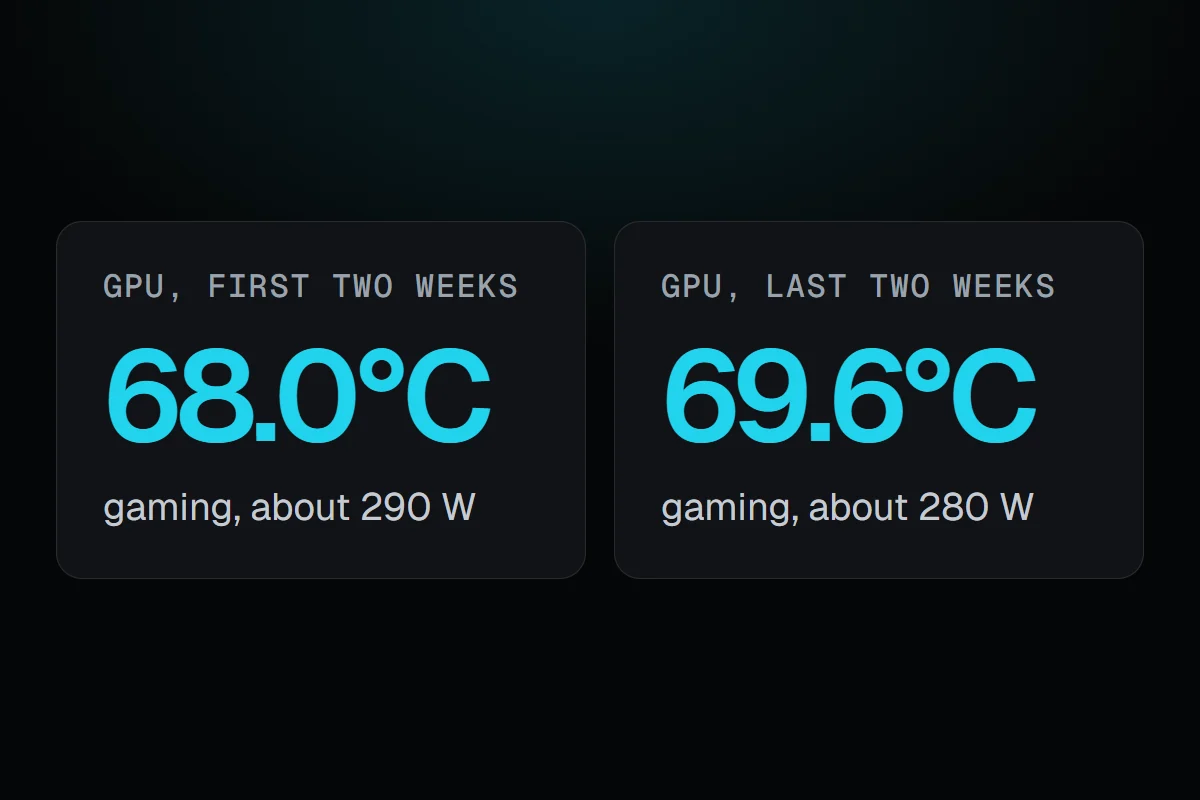
The first weeks matter most for later. On the Temperatures page, Over the months takes the first two weeks of history as each part's usual and shows how far it has moved since, at the same load. On a new PC, those are the new parts' own first weeks. Until there's enough history it says so, "Too soon to say", with what it still needs. My own GPU averaged 68.0°C while gaming in its first two weeks of history, at about 290 W, and 69.6°C in the last two at about 280 W. At rest it was 47.6°C then and 47.7°C now. That's a part holding steady, and I can only say so because the first two weeks were recorded.
For a used drive, Storage shows the hours it has been on and the life left it reports, which tells you how much use it had before you. RigSight is free and open source.
On the first day
- Plug the monitor into the GPU, not into the motherboard. It's the most common reason a new card seems to do nothing.
- Install the latest driver from NVIDIA, AMD or Intel. If you switched brands, uninstall the old driver first.
- Press Ctrl + Shift + Esc, open Performance and click the GPU. Check its full name and memory match what you bought.
- Set your monitor's refresh rate under Settings > System > Display > Advanced display. Windows often starts a new screen or card at 60 Hz.
- For new memory, check Task Manager's Memory page shows the full amount, and turn on XMP or EXPO in the BIOS if you want its rated speed.
How to test a new GPU
A real game is the best test, because it's what the card is for.
- Turn on an overlay that shows FPS and the GPU's temperature. How to show FPS on PC covers each one.
- Play your most demanding game at high settings for 30 minutes or more.
- Watch for crashes, a black screen that comes back, or artifacts, like flickering shapes, checkerboards or wrong colours.
- Check the GPU is near full load. In a demanding game it should sit at 95% or more. Normal GPU usage while gaming explains when lower is fine.
- For a repeatable number, run a benchmark like 3DMark Time Spy or Unigine Superposition and compare your score with others for the same card.
FurMark loads a card harder than any game. It's a test of the extreme, not something a new card needs to pass.
What temperatures to expect
Look at three readings, not one. The GPU core, the hot spot, which is the warmest point on the chip, and the memory. Rough ranges while gaming are 60 to 80°C for the core, a hot spot about 10 to 20° above it, and 70 to 90°C for the memory, higher on GDDR6X cards. These guides have the detail.
Testing a used GPU or PC
- Check GPU-Z shows the model you were sold. It reads the card itself, not what the box says.
- Under load, the hot spot far above the core, like 30° or more, can mean old thermal paste or a cooler that sits badly.
- Every fan should spin under load. Listen for rattles and grinding.
- For drives, check hours on and life left in CrystalDiskInfo, or on RigSight's Storage page. SSD health check explains the readings.
The first week
Use it normally and watch for problems. A game crashing now and then can be the game. The same game crashing again and again, a black screen that recovers, or the PC shutting off on its own is worth reporting while the return window is open. Keep the box and receipt until you're sure.
Your next step is to play your heaviest game on the first day with an overlay on, and write down the GPU's temperature and frame rate. That's your new part's normal, and the number you'll want in a year.
Questions people ask
How to test a new GPU and see it's working?
Open Task Manager, go to Performance and check the GPU shows its full name and memory. Then play your heaviest game or run a benchmark like 3DMark or Unigine Superposition for 20 to 30 minutes. No crashes, no artifacts like flickering shapes, and temperatures within the card's limits mean it's working.
How do I stress test a new GPU?
Play your most demanding game at high settings for 30 minutes or more, or loop a benchmark like 3DMark Time Spy or Unigine Superposition. Watch the core, hot spot and memory temperatures. FurMark loads a card harder than any game, so it's an extreme test, not a needed one.
What should I do after installing a new GPU?
Plug the monitor into the GPU, not the motherboard. Install the latest driver from NVIDIA, AMD or Intel. Set your monitor's refresh rate in Windows display settings. Then test it in a game, and keep the box until you're sure it's fine.
How do I check a used GPU before buying?
See it running a game or benchmark for at least 15 minutes. Check that GPU-Z shows the model you were sold, that the fans all spin under load, and that the hot spot and memory temperatures aren't far above the core. Look for artifacts and listen for fan rattle.